Skip to content

Explore the features

A dedicated dashboard for everyone

The learner support workspace

In their Follow Lab dashboard, learners find:

  • key information about their journey
  • feedback from facilitators they meet
  • the ability to share how they feel and flag difficulties
  • scheduled appointments
  • a file-sharing space
  • deliverables to complete
  • a chat area

This workspace is also very useful for facilitators, who can see each learner's full history and current situation.
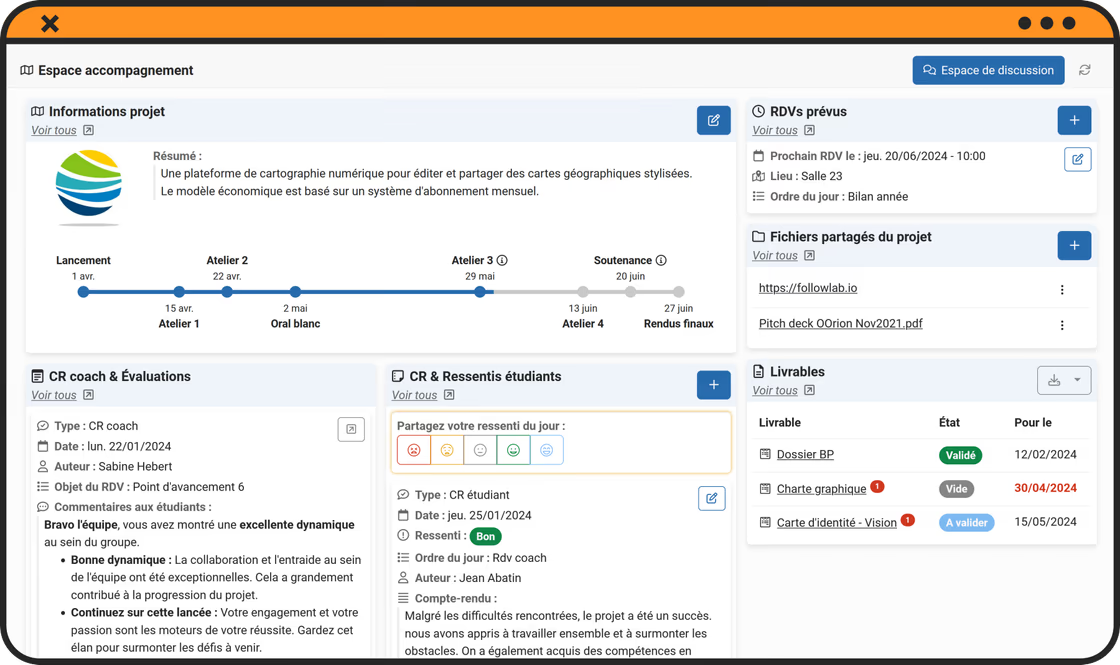
Learner support workspace

Dashboards for managers and facilitators

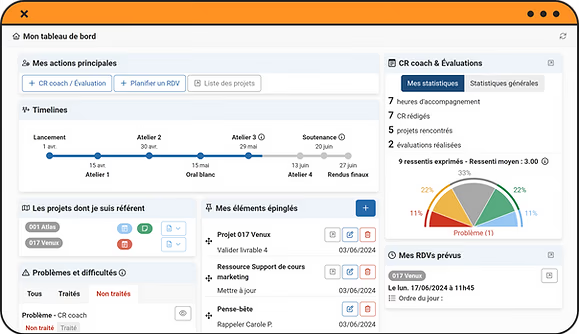
Facilitators and managers find on their dashboard:

  • Key actions, including creating a support session report
  • The program timeline, to keep key dates top of mind
  • Essential information about the projects they support
  • Alerts on reported issues
  • Their to-do list
  • Their scheduled appointments
  • Their statistics, and those of the program
Facilitator dashboard

Organize your programs

Organize support

Individual support

Assign one or more reference tutors to each learner.

Group projects

Build teams and assign one or more reference tutors. Each team gets its own support workspace to progress and collaborate.

Schedule appointments

Support appointments can be organized on Follow Lab:

- either in advance, by program managers

- or on the fly, directly between facilitators and learners.

Appointments scheduled on Follow Lab can trigger reminders.

Run your programs

Each learner and their projects can be categorized by program, class, location, and more.

This is very practical to:

- filter information

- generate mailing lists

- manage deliverables

- share resources

- differentiate evaluations

Share key information

Resources

Build your resource library and share resources with learners and facilitators.

Files, videos, or links can be shared with all users or specific categories only.

When sharing, you choose whether to send a notification.

Resources centralize key course information and keep it accessible to facilitators and learners.

Pedagogical resources

Timelines

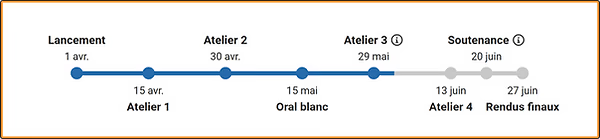
Share your program key dates in a visual, practical way.

  • launch
  • workshops
  • conferences
  • evaluations
  • etc.
  • and closing

Facilitators and learners always see the full schedule and the time between milestones.

Program timeline

Structure your program with deliverables

Prepare deliverables

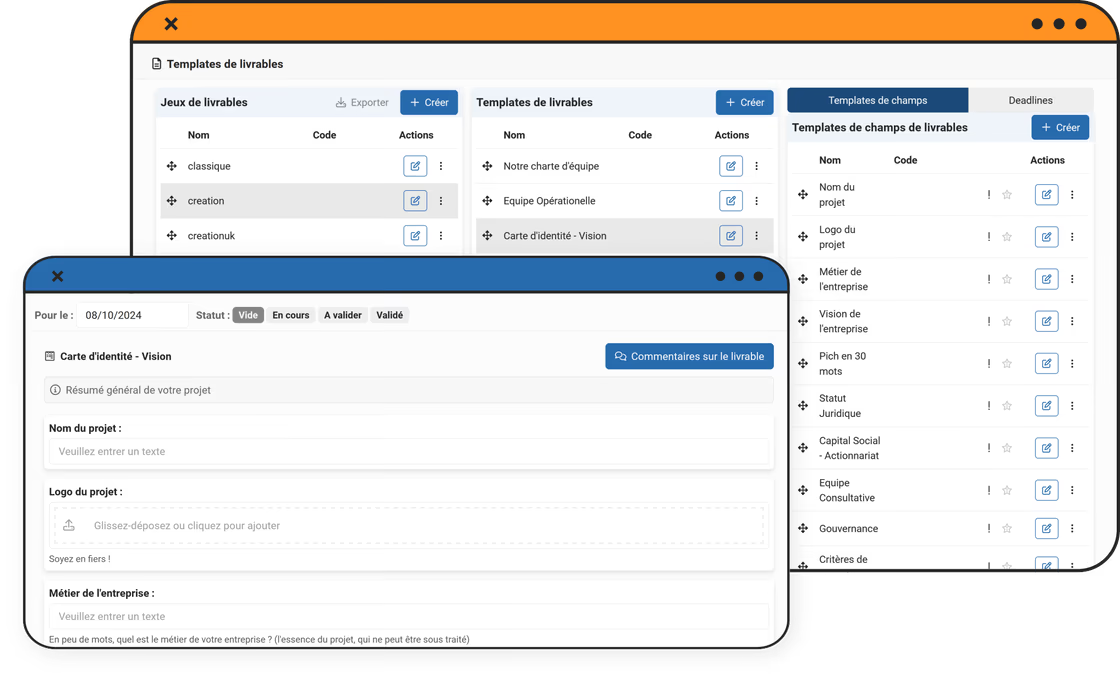
Freely configure the deliverables you expect from learners:

  • documents to upload
  • templates to fill in on Follow Lab, 100% customizable
  • individual questionnaires

Assign deliverables to learners by program and set deadlines.

All learner submissions are centralized and available to facilitators. Export everything at any time if needed.

Intermediate deliverables help structure learner progress and spot difficulties early in the program.

Deliverable preparation view

Supervise progress

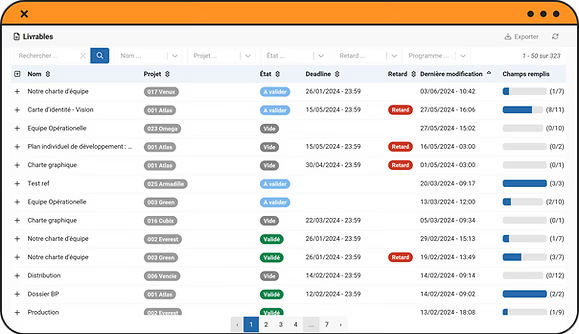
See each deliverable status at a glance:

  • deliverables in progress, pending validation, validated, etc.
  • upcoming deadlines
  • overdue deliverables

Table filters help you find the information you need very quickly.

Practical example: find all deliverables that were not submitted and are overdue.

Deliverable supervision

Track every learner's progress

Session reports

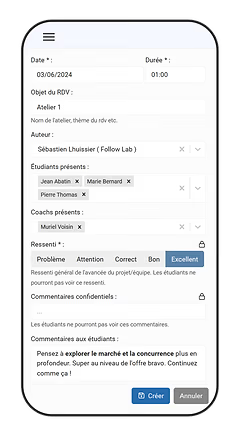
After each support appointment, facilitators write a brief report.

This helps to:

- keep a record of all appointments

- provide quick feedback and flag issues

- give learners feedback

- ensure pedagogical continuity from one appointment to the next

- track absences

Input is very simple and works on mobile.

Learners can also write reports and share how they feel.

Voice input for reports is now available. AI adds punctuation.

Mobile session report input

Support overview

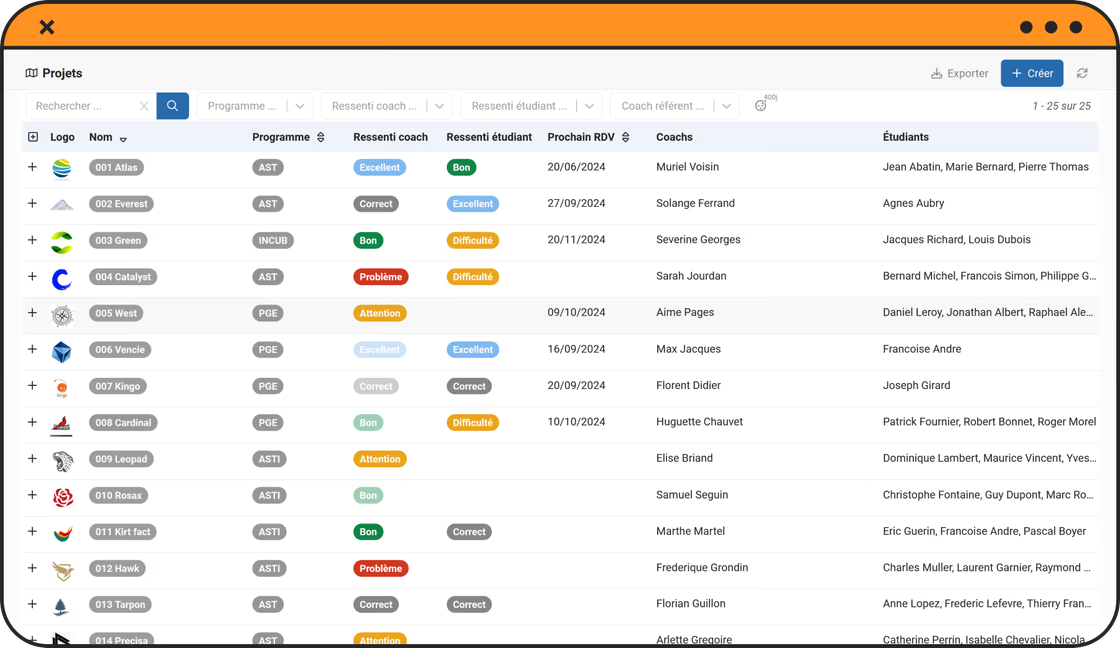
See each project's status instantly, based on the latest feedback.

Issues and difficulties reported by facilitators or learners are clearly visible in this overview.

You are also notified immediately when a problem is reported.

Table filters help you find the information you need very quickly.

Practical example: find all projects whose latest feedback is "issue" or "difficulty".

Project overview

Each learner's activity summary

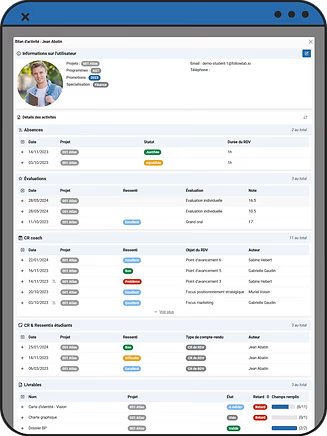
At any time, see each learner's activity summary with:

  • Key information
  • Absences
  • Evaluations
  • Session reports
  • Shared feedback
  • Deliverables

If a learner is supported across several projects, the activity summary provides a consolidated view across all projects.

Individual learner activity summary

Communicate day to day

Instant discussions

Individual support

Each learner has a chat space with their tutor(s).

Group projects

Each team has a chat space with facilitators.

Each deliverable also has a comment space to discuss content, ask questions, give feedback, and more.

Announcements

Communicate with facilitators and students through announcements.

For each message, you can configure recipients and notification level.

Students and facilitators can react and ask questions in the discussion channel linked to each announcement.

Notifications

Your actions on the platform can generate notifications for other users, including:

  • sharing comments with students
  • reporting an issue
  • scheduling an appointment
  • publishing an evaluation
  • validating or invalidating a deliverable
  • adding a resource
  • etc.

Run your evaluations

Prepare evaluation sessions

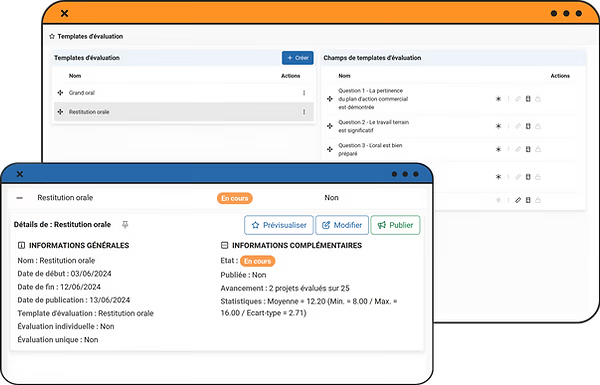
Configure evaluation grids according to your pedagogy and certifier requirements:

  • skills to validate
  • numeric scales
  • letter scales
  • dropdown lists
  • free-text questions

Plan your evaluation sessions:

- individual or group evaluations

- session dates

- result confidentiality

No need to email evaluation grids to each jury member and manually centralize results. Just give them access to Follow Lab.

Prepare evaluation sessions

Evaluation input

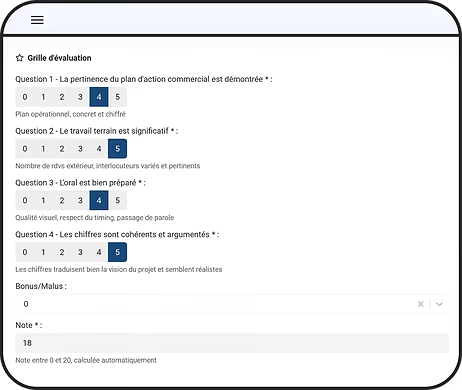
Evaluation input is as simple as possible for jury members and works on mobile.

Numbered scales enable visual, very fast input.

Automatic final score calculation helps prevent calculation errors.

Track evaluation progress in real time and see who still needs to be evaluated.

Evaluation input in Follow Lab

Analyze, share, and archive results

Decide exactly which parts of the evaluation are shared with learners, and when. Analyze completed evaluations. Monitor acquired skills and skills still to validate. Group skills by blocks and validate block acquisition. Finally, export evaluation reports and archive past sessions for audits.

Manage your data

Filters, search, and sorting

  • who has no tutor?
  • who has not submitted their final portfolio?
  • who has had no appointment in the last 2 months?
  • how many absences were recorded for project 12?

Follow Lab tables include search, multiple filters, sortable columns, and a row counter.

Combine these settings to get precise, valuable information in seconds.

For example:

Imports and exports

  • a zip with all final portfolios uploaded to the corresponding deliverable
  • an Excel file with all support appointments that took place
  • an Excel file with all learner grades and skills

For a fast, efficient setup, import user lists, groups, and assignments via Excel.

At any time, you can also export data from Follow Lab.

For example:

Archives

When a program ends, archive its data.

Your interface stays clean and simple. Everything is kept for 5 years, and you can quickly retrieve all data for quality audits.

You can always export everything if needed.

Adapt the platform to your workflow

Many options to match how you work

All features listed above are optional and can be disabled in one click.

This may seem minor, but it is essential to balance flexibility and simplicity. Follow Lab can meet your specific needs while staying easy to learn and pleasant to use.

Your logo, your vocabulary, your forms

Each organization gets its own Follow Lab space, with its name and colors. All vocabulary on the platform can be adapted to your habits. Data models are also extensible. We can configure additional fields on request, for example in user profiles, project descriptions, or session report forms.

Individual preferences and settings

Each user can display the interface in French or English and configure in detail which notifications they receive when actions are taken on the platform.

Apprenticeship focus: skills tracking

A centralized process in 3 simple, fast steps

1. Configure my skill frameworks

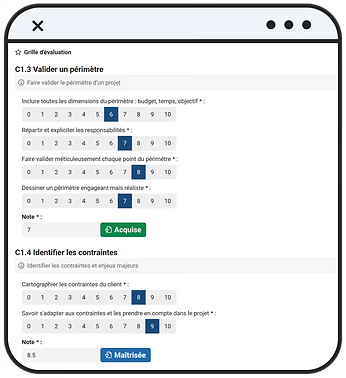
I can freely configure each skill to match my training framework and define how it is evaluated. Skills, grouped by block, can be assessed against a 100% configurable list of criteria. Skill acquisition level can either be set manually or calculated automatically from criteria.

2. Configure my evaluations

Once skills are configured, I can plan evaluation sessions. For example, I can decide that skills C1.1, C1.2, and C1.3 will be evaluated in January, and skill C1.4 in March.

3. Jury members enter evaluations

Jury members easily access each learner's file and complete evaluations in a few clicks. No more Excel sheets and Word documents. Everything is centralized.

Evaluation grid on mobile

Optimal information organization

Skills overview

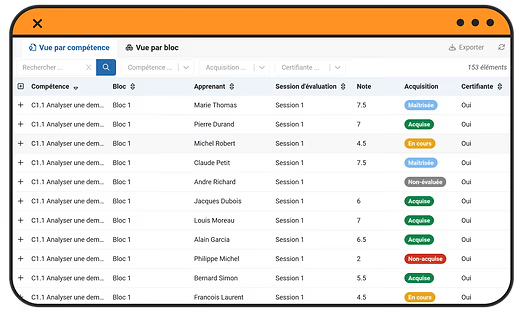
A summary table gives me an overview of learner skills at any time.

I see all acquired, not acquired, or pending skills.

I can filter information to target my search, for example:

- which skills are not acquired? - for which learner has C1.1 not yet been evaluated?

View by skill

View by skill block

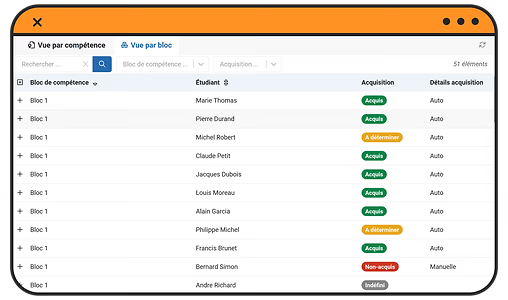
The block view lets me verify block acquisition for each learner:

- until all skills are evaluated, the block remains pending

- if all skills are acquired, the block is automatically validated

- if all skills are evaluated but some are not acquired, the block is "to be determined" until manual review

View by skill block

Individual learner view

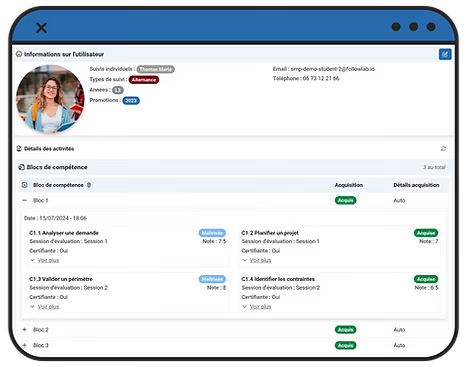
The individual learner summary recaps acquisition status, by block, for each skill.

Everything can be archived for audits or exported to Excel.

Individual learner skills summary

Questions? Want to learn more?

Request a demo, we will respond within 8 business hours.

Book a demo