Frequently asked questions
New to Follow Lab PRO? See the onboarding path in the Docs menu for a step-by-step tour of the platform.
What does my client see?
Your client only has access to what concerns them:
- their coaching space
- the resources they are authorized to access in the resource library
In the coaching space, your client has a different view from yours and cannot see items marked with a padlock icon, such as confidential comments or the feelings you record in your session notes.
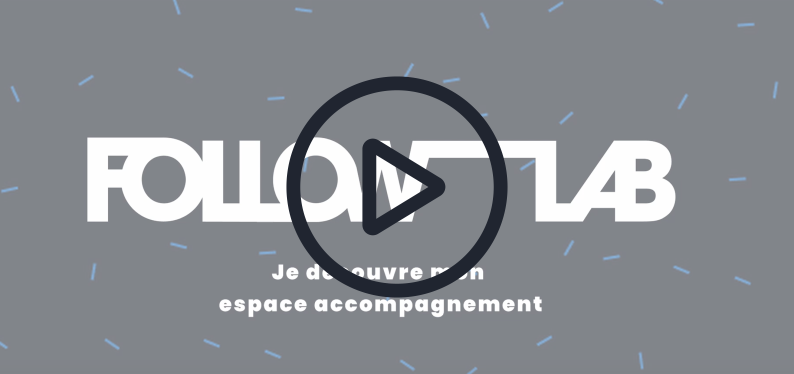
On their first login, your clients are invited to watch a video introducing the coaching space. You can watch it too to see what it looks like!
Finally, at the top right of the coaching space, an "eye" button lets you view the coaching space "as your client sees it".
Is Follow Lab PRO available on mobile?
Yes, Follow Lab PRO works on mobile.
The display adapts to your screen size to make it easier to use.
Tip: you can add a direct access button to Follow Lab PRO, like an app, on your phone's home screen. This is explained in this video.

Follow Lab PRO also makes it easier to enter your session notes with voice input, AI-assisted (available on Chrome, Edge, and Safari).
How do I join the community and the Follow Lab PRO user directory?
Follow Lab PRO is not just a (great) tool!
It is also a growing community for mutual support and exchange between professionals.
Join the community on LinkedIn
You can also be listed in the directory to gain visibility.
What notifications does my client receive?
The people you support are notified by email when:
- you invite them to the platform
- you schedule an appointment (the email includes an .ics file so they can add the appointment directly to their personal calendar)
- 7 days and 3 days before an appointment
- you write comments for the person being supported in your session notes
- you check the "notify by email" box when adding a resource
- every morning (except Saturday and Sunday) if unread messages remain in the discussion space
Like you, the people you support can adjust their notification preferences.
Finally, you can view the history of emails sent to each user. To do this, go to the "users" page, click on the user, then "Activity summary", and check the "Email history" section.
What is my to-do list?
At the top right of the interface, you can display your personal to-do list.
These are your sticky notes so you don't forget anything.
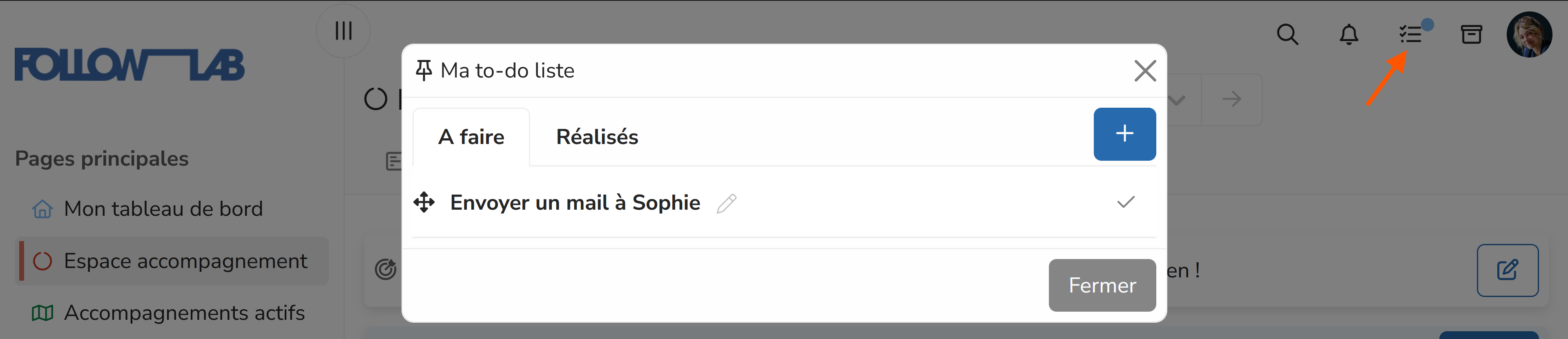
Throughout the platform, the pin icon lets you quickly add an item to your to-do list.

How and why should I use my referral code?
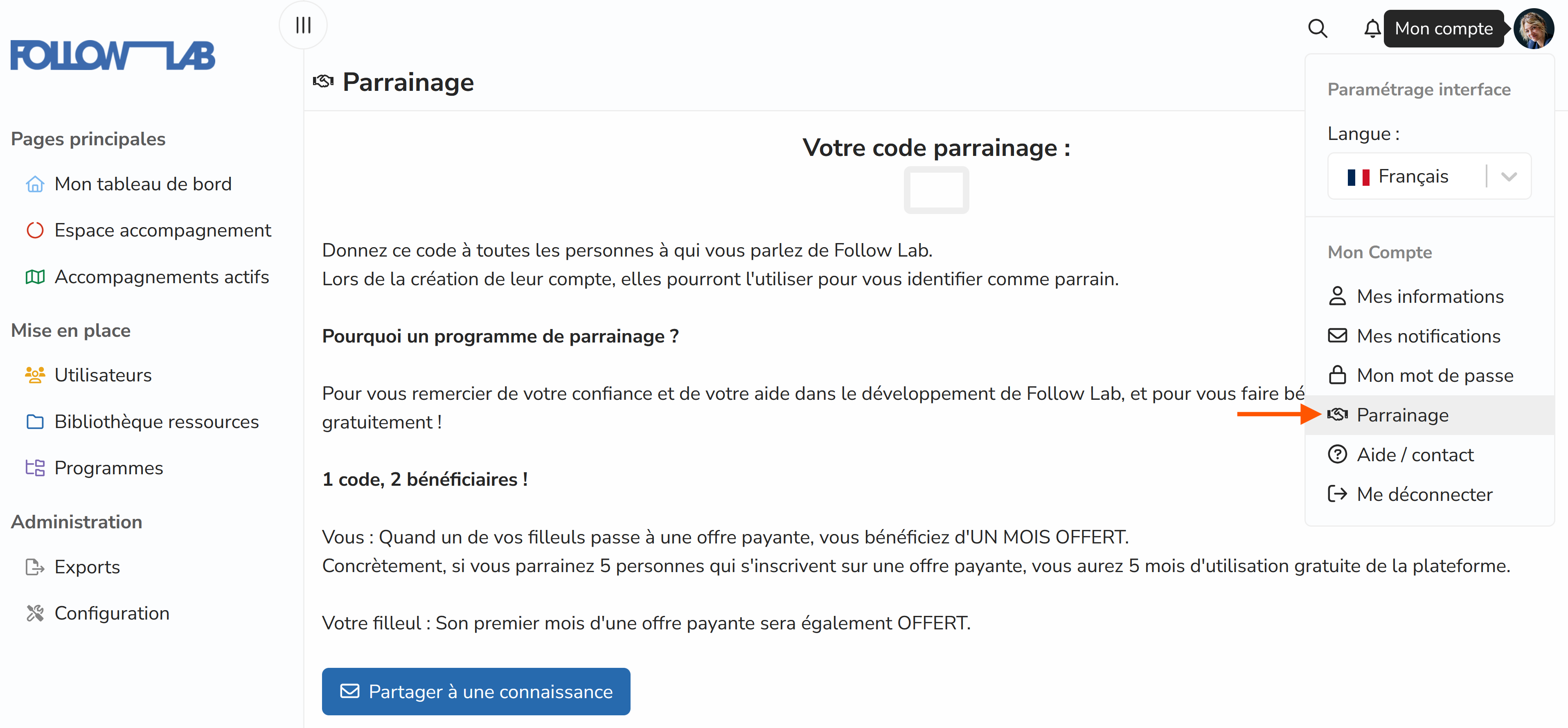
Sharing your referral code earns you and your colleagues free subscription months.
For each person who signs up with your code, you get 1 free month of subscription and your referral does too.
Visit your "referral" page to get your code and share it:
How do I manage my notifications?
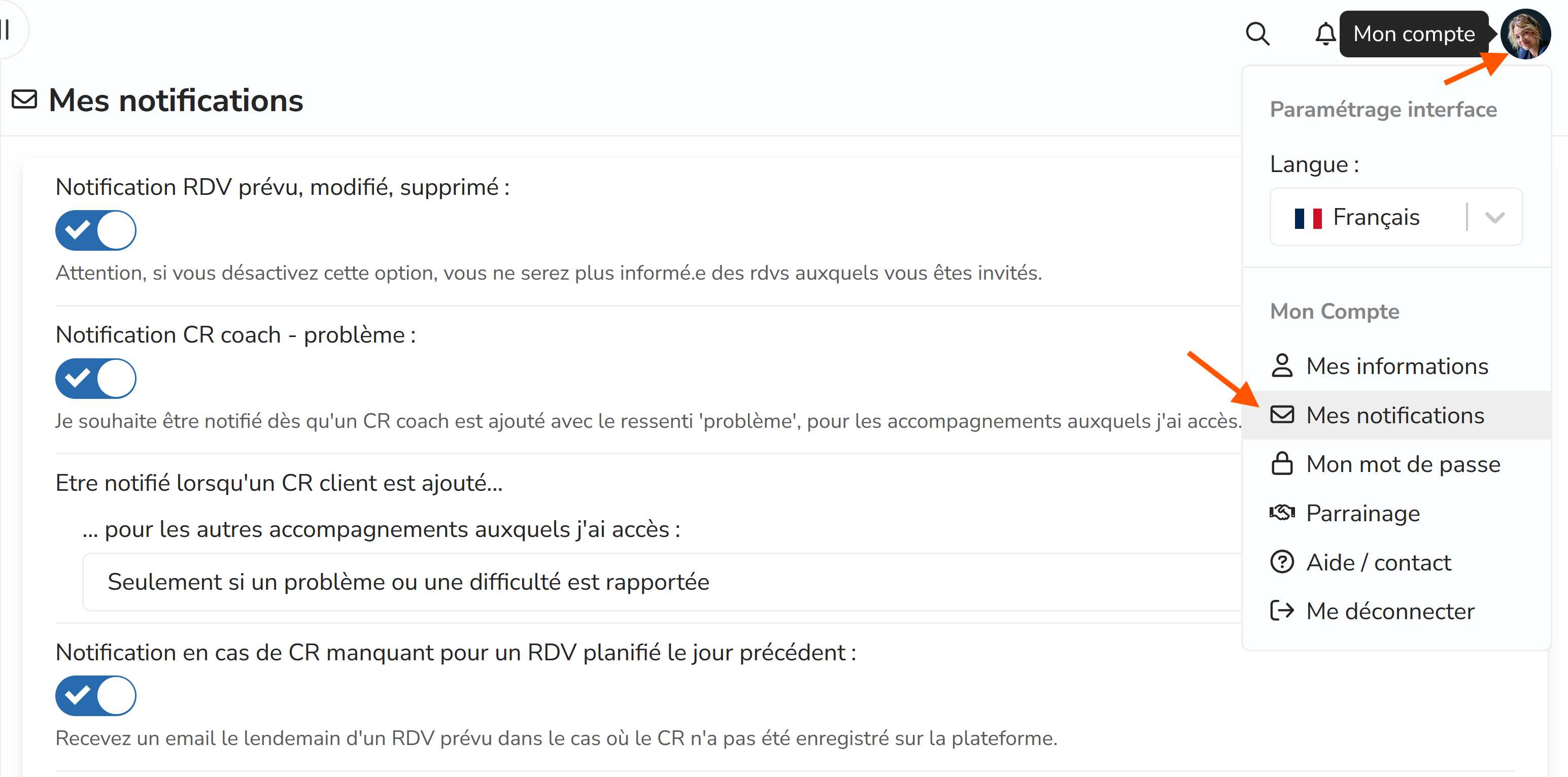
A series of email notifications are in place to keep you informed of important updates.
You can adjust your preferences via the "My notifications" page, accessible from the profile button at the top right of your interface.
Where can I see all of my activity?
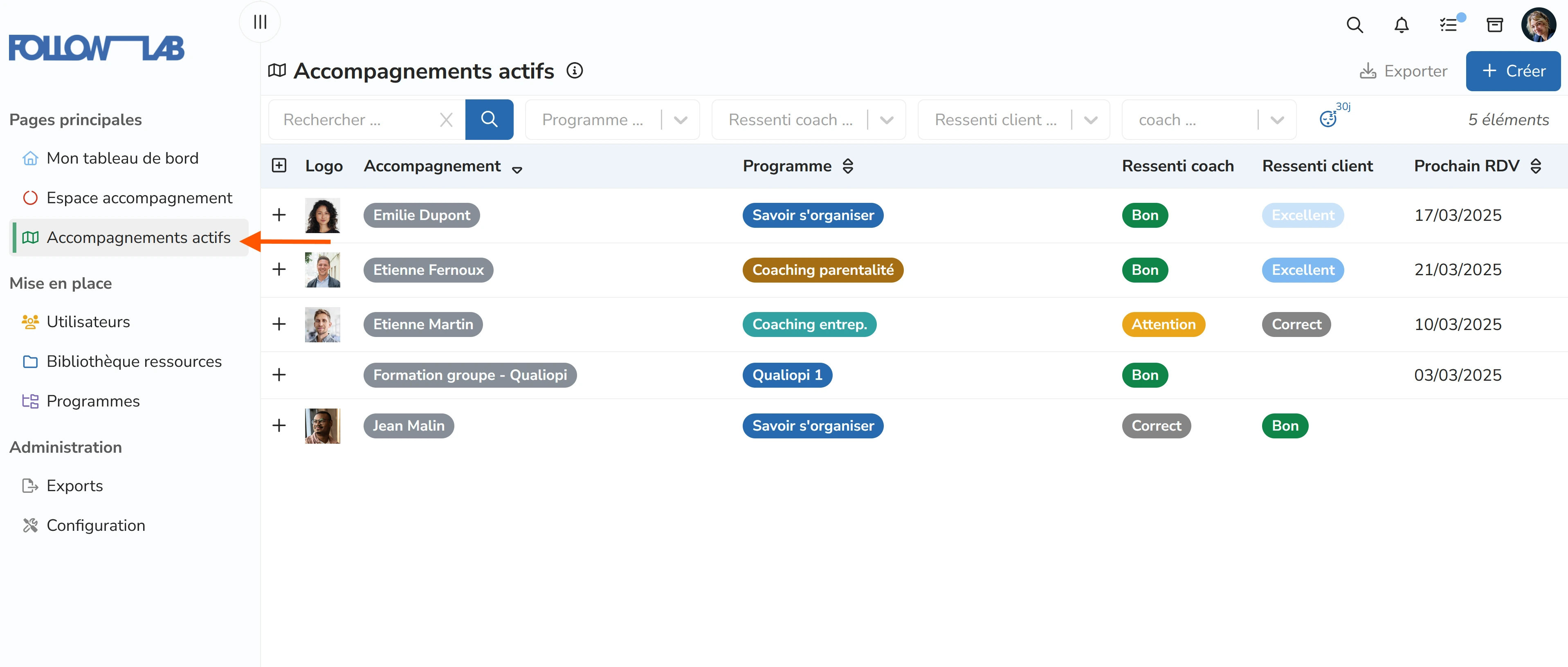
The "active coaching programs" page gives you an overview of all your ongoing coaching relationships.
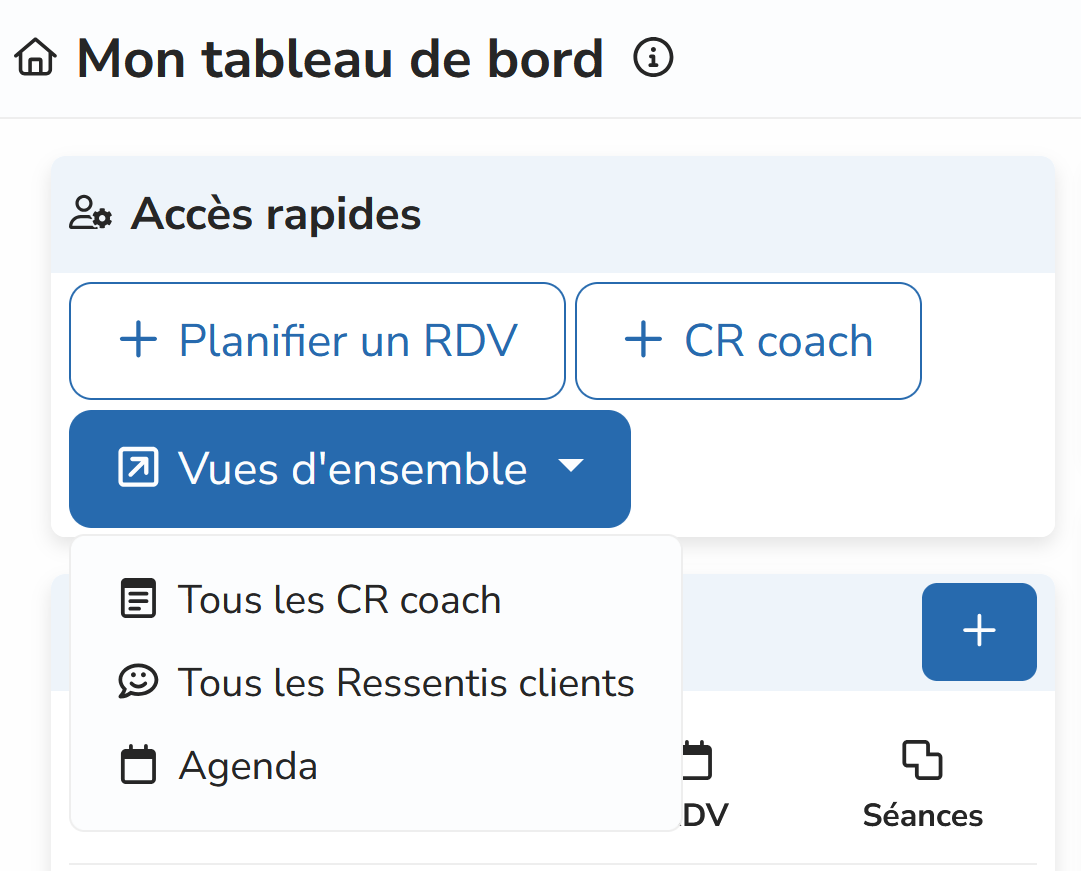
From your dashboard, the "overview" button gives you access to other tables: all client feelings, all coach session notes, all scheduled appointments.
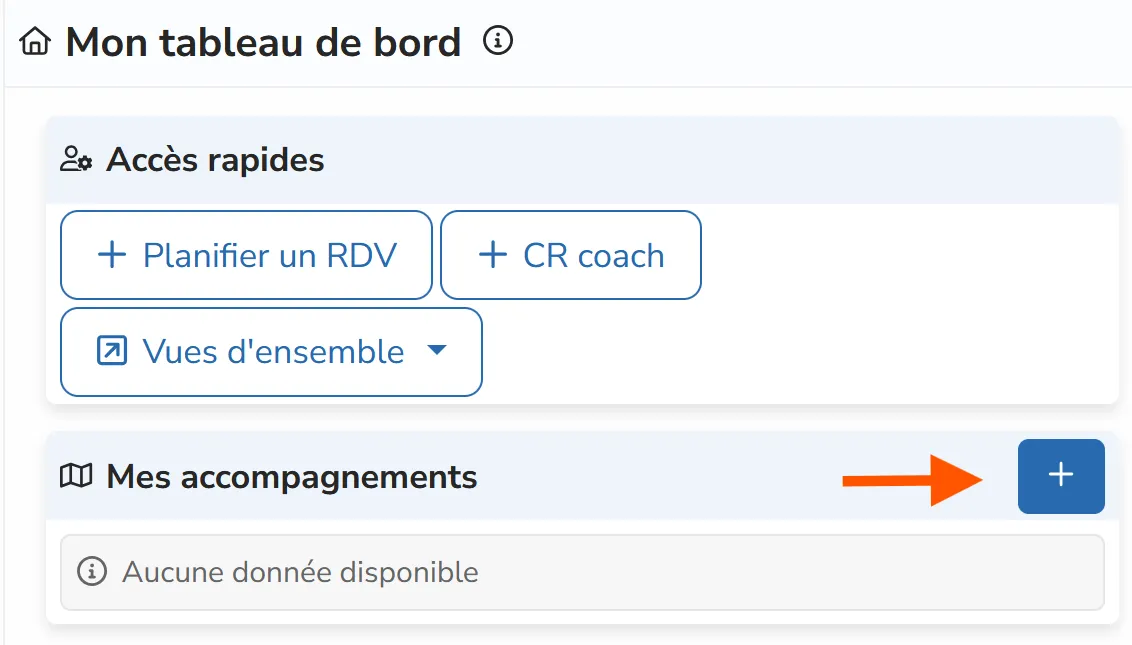
How do I create a coaching program?
From my dashboard, in the "My coaching programs" section, or from the "active coaching programs" page, I click the "+" button.
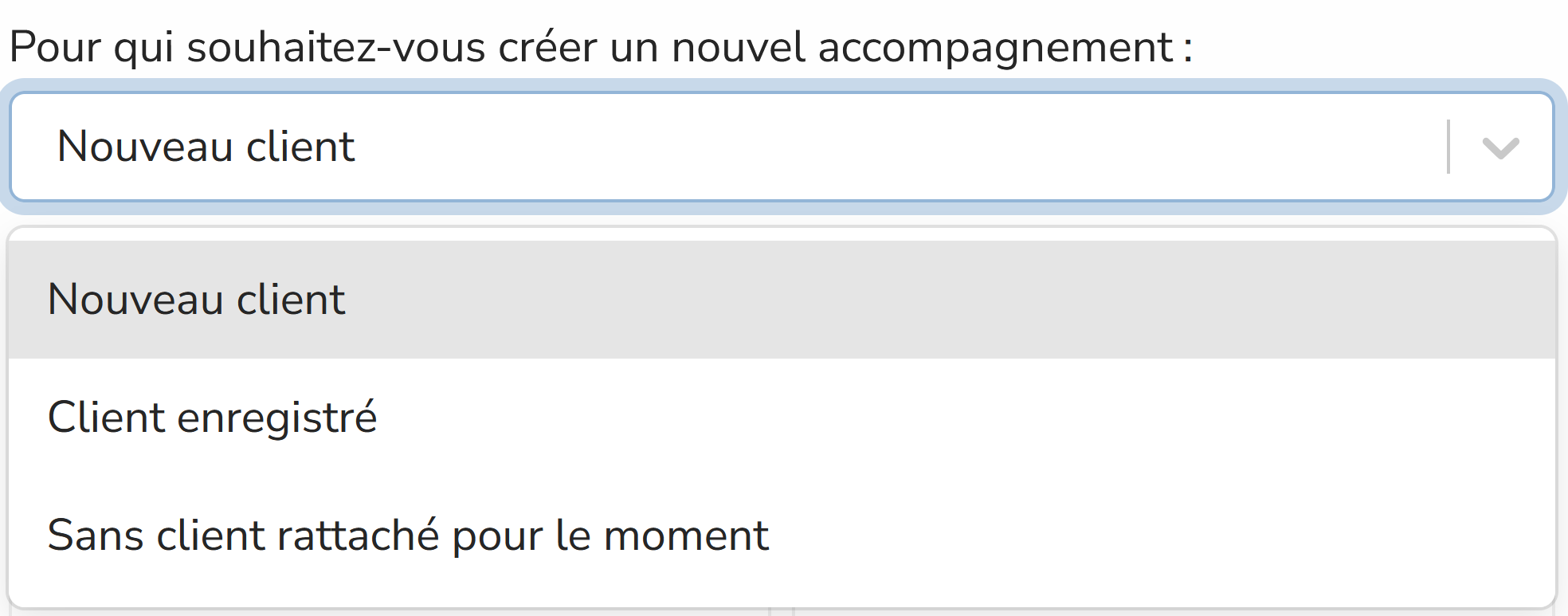
I then choose among three creation options:
- new client (I will also create a user account for my client)
- existing client (for a client already registered on my platform)
- no client attached for now (the client will not have access for now; I can add them later).
I choose the name of the coaching program, optionally the color and pricing mode.
I finally choose the program, and that's it!
How do I create a program?
In two ways:
Either when I create a coaching program, at the moment of choosing the program, I select "new program".
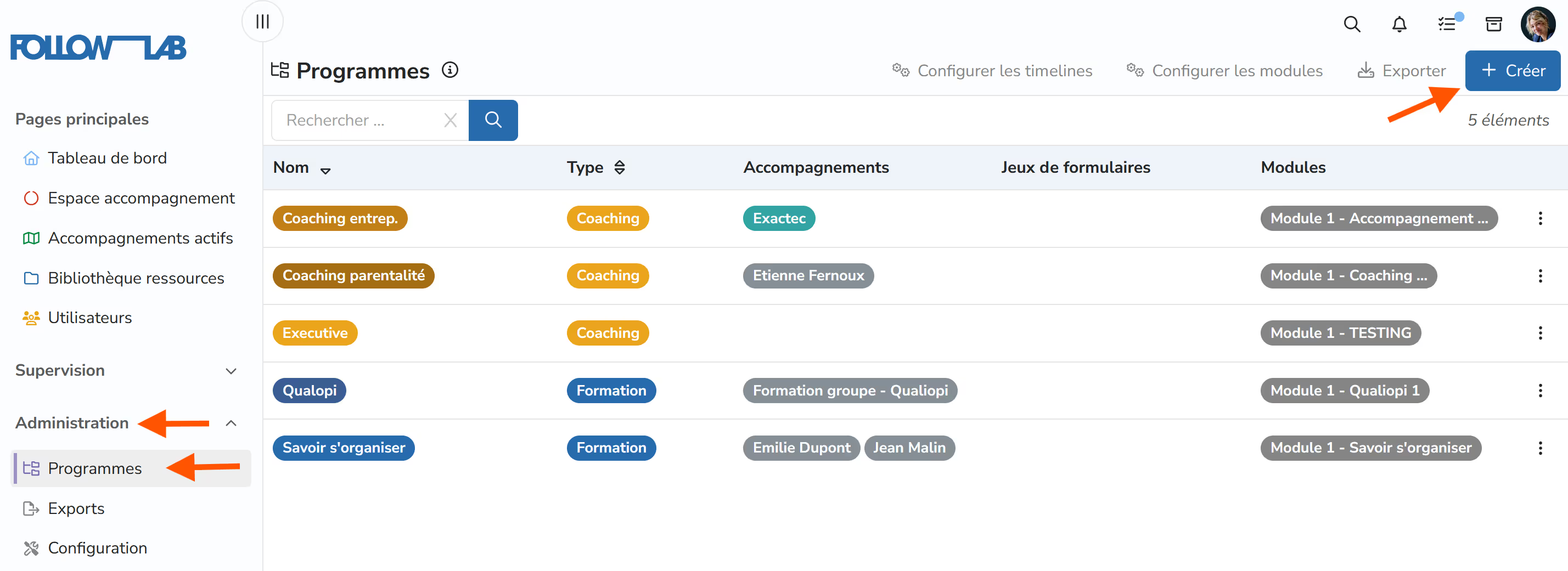
Or simply from the "programs" page I select "+ Create".
How do I use forms?
Forms let you request information or documents from your clients.
You can use them:
- to collect key and essential documents in an organized and structured way
- to administer questionnaires (positioning, satisfaction, self-assessment, etc.)
- to offer them a framework for reflection and writing
Preparing forms:
From the forms page, you can access the "form library".
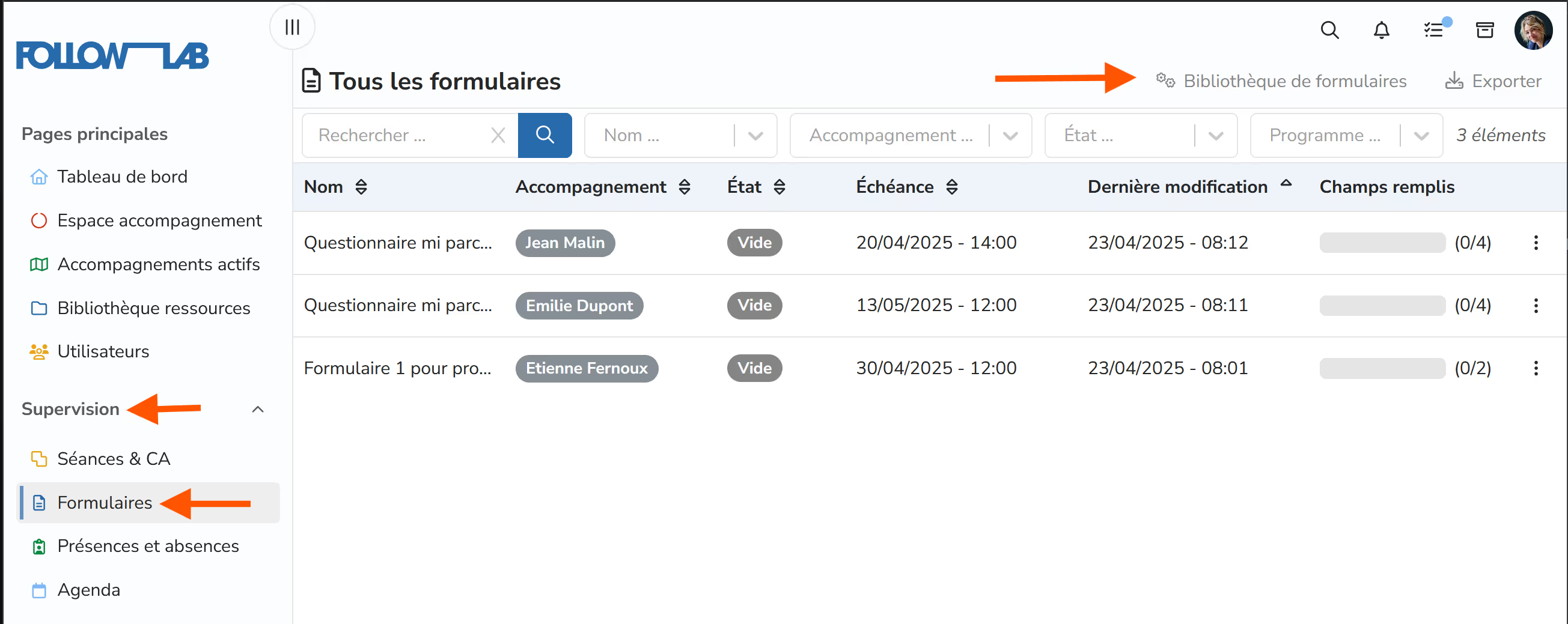
Here you can freely create form templates by giving them a title, a list of questions (or fields), and optionally a deadline.
Fields can be of different types, including: free text, dropdown list, file upload, number bar to select, etc.
You can also create form sets.
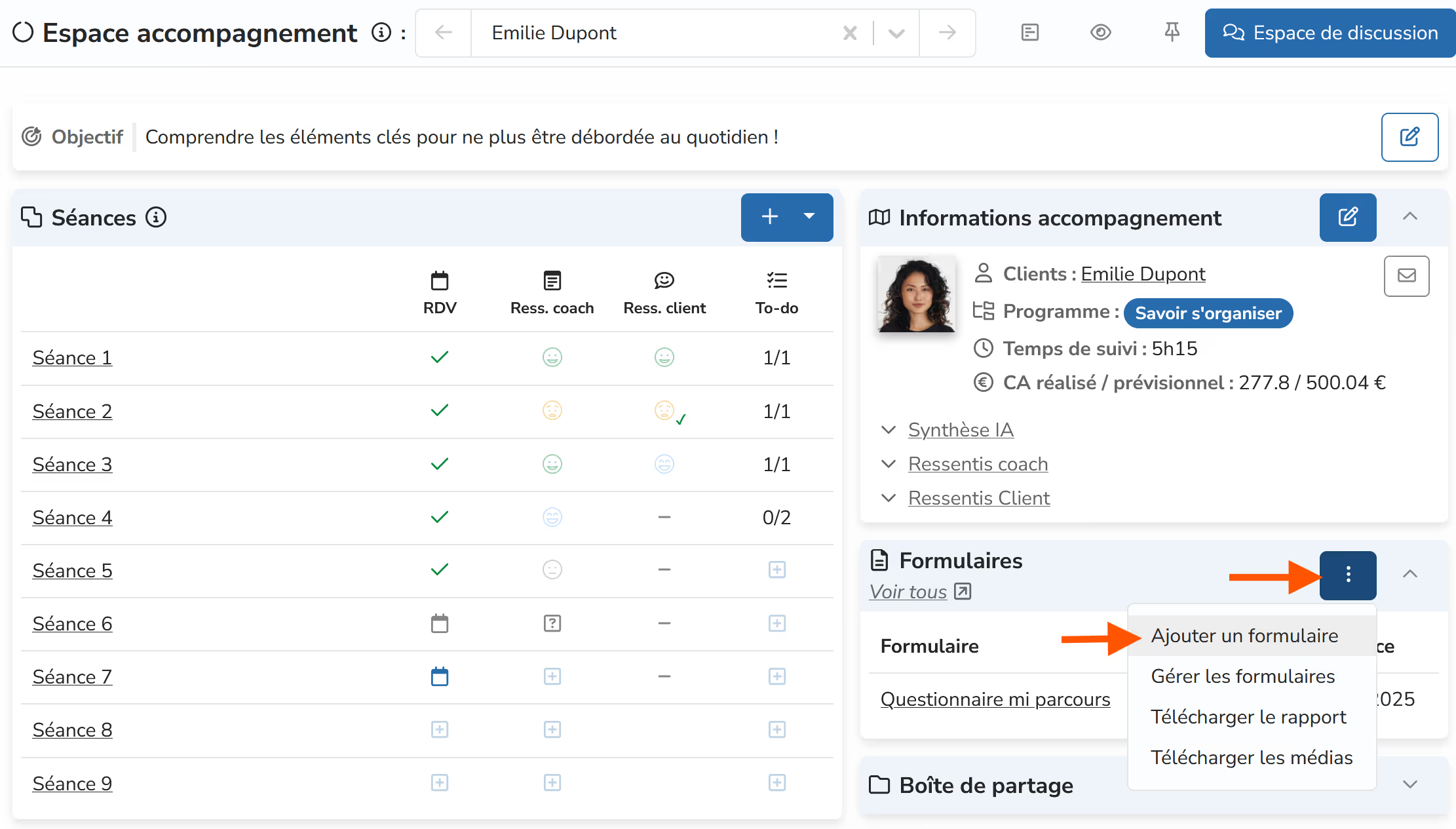
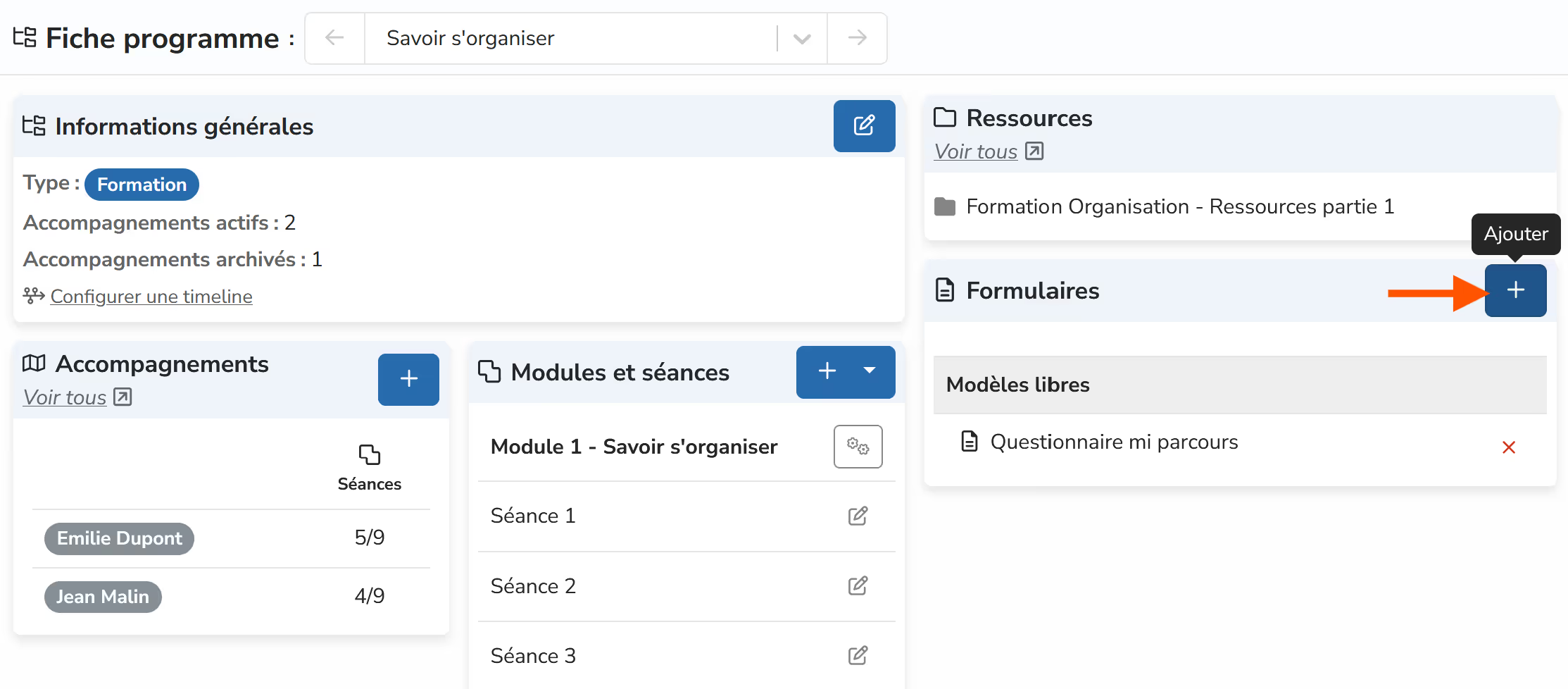
Once your templates are ready, you can add them to coaching programs.
- From the coaching space
- From the program sheet (all coaching programs, present or future, for this program will then automatically have the forms added)
How do I organize my resource library?
Organizing your resources in a hierarchy helps you store information better and also configure access rights! Indeed, if I restrict access to a folder, every file or subfolder inside will, by default, have the same restrictions.
On the "Resource library" page, I can add folders to organize my resources using the "+ create" button.
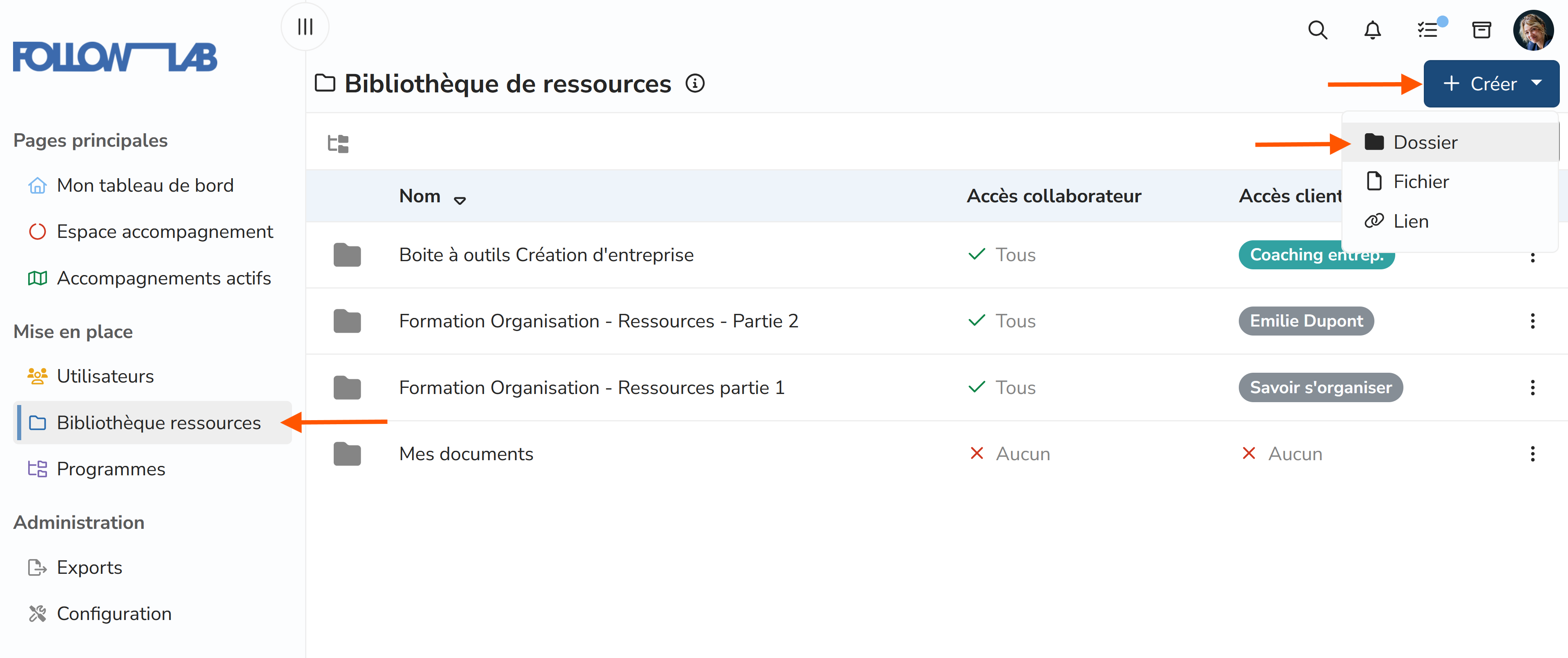
By double-clicking on a folder, I can enter it to add files or create other subfolders.
Tip: It is simpler to create one folder per program for managing rights and access later on.
What is the difference between a coaching program and a client?
On Follow Lab PRO, we distinguish:
- Users: the people being supported (clients) or collaborators in your organization, characterized at minimum by their first name, last name, and email
- Coaching programs: work processes between you and the people being supported, characterized at minimum by a coaching program name and a program.
Good to know:
- a client can be enrolled in several different coaching programs
- several clients can be enrolled in one coaching program (group coaching)
- a coaching program can exist without being linked to a client (if you do not want to give them access to the interface)
By default, a coaching program is named from the first and last name of the associated client. This is often the best fit, but you can rename a coaching program at any time.
How do I archive a coaching program?
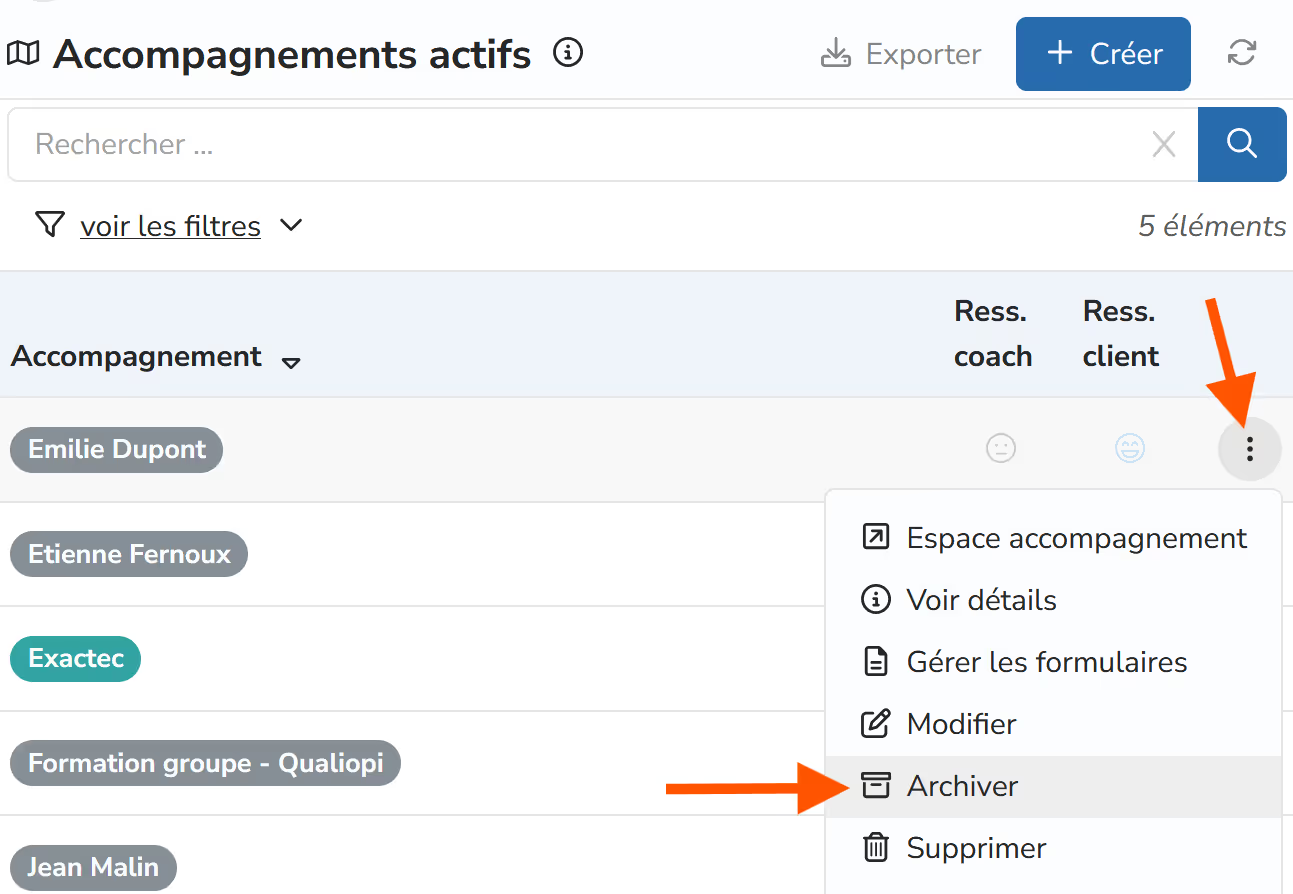
From the "active coaching programs" page, I click the options button for the coaching program I want to archive, then click "archive".
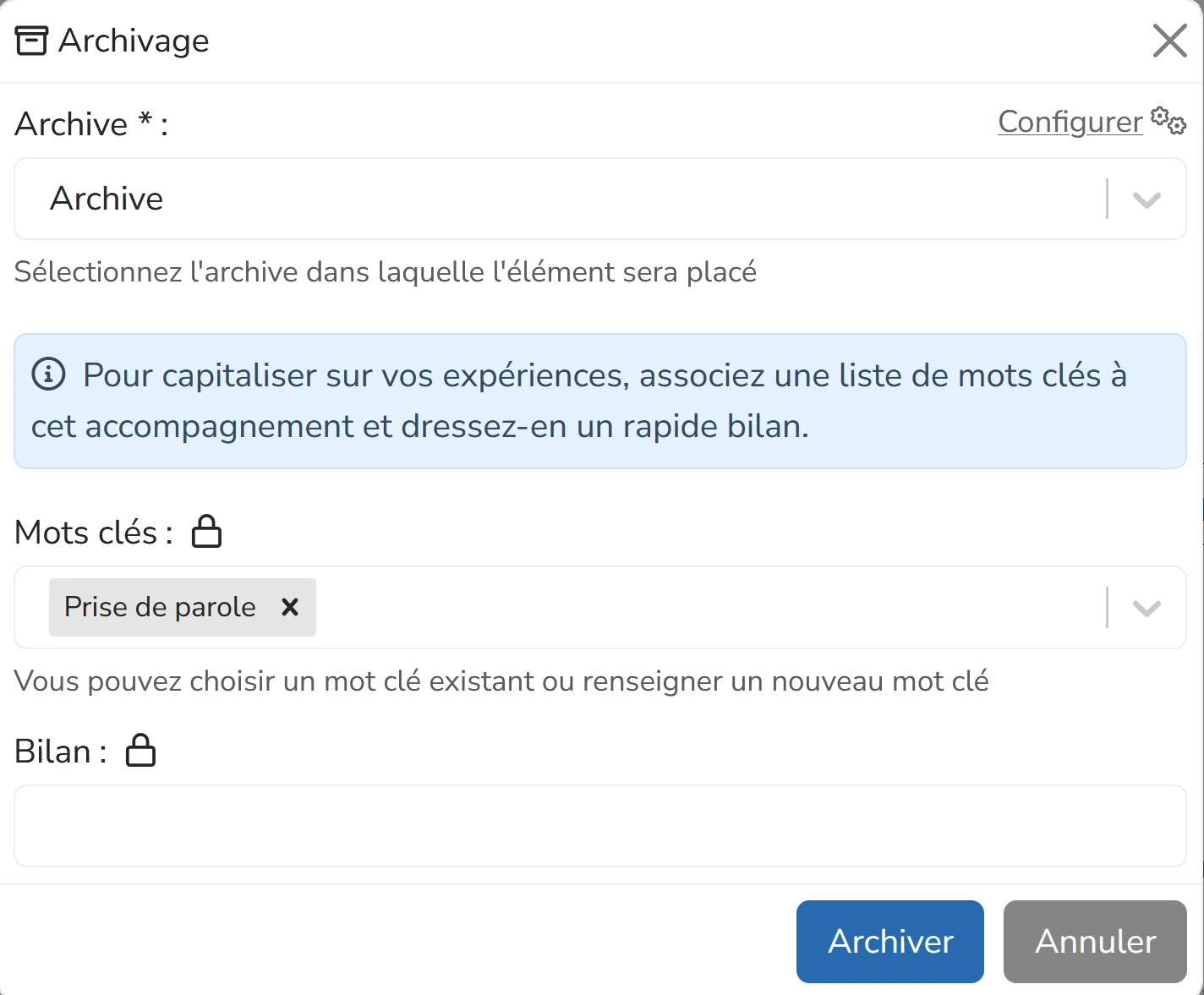
I can enter keywords and a summary of this coaching program. The keywords will help me quickly find relevant coaching programs to review among all the coaching programs I have delivered.
I can find and organize all my archives from the "archives" icon at the top right of the interface.
By default, and in accordance with GDPR, data is retained for 5 years from the moment the coaching program is archived. You can write to contact@followlab.io if you wish to adjust this duration
How does the Calendly integration work?
If you have a Calendly subscription (Calendly blocks integrations for free accounts), you can enable the Calendly integration.
With this integration, your clients can book their sessions from Follow Lab PRO based on your Calendly availability. An appointment booked in Follow Lab PRO is automatically reserved in your Calendly and stays synchronized (whether you make the change in Calendly or in Follow Lab PRO).
However, note: an appointment booked in Calendly without going through Follow Lab PRO will not appear in Follow Lab PRO. It is therefore not recommended to share your Calendly link directly with your clients if you want scheduled appointments to appear in Follow Lab PRO.
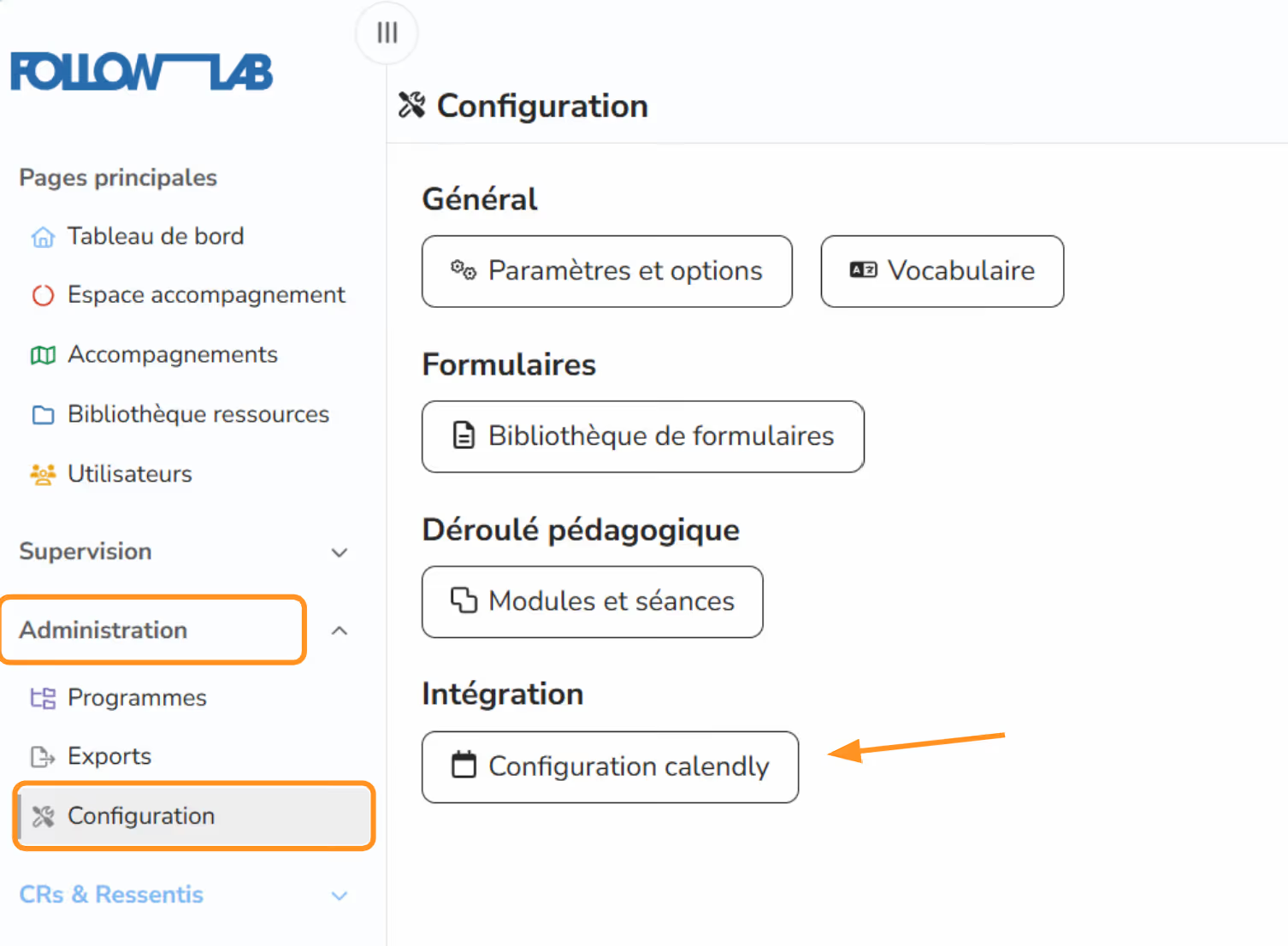
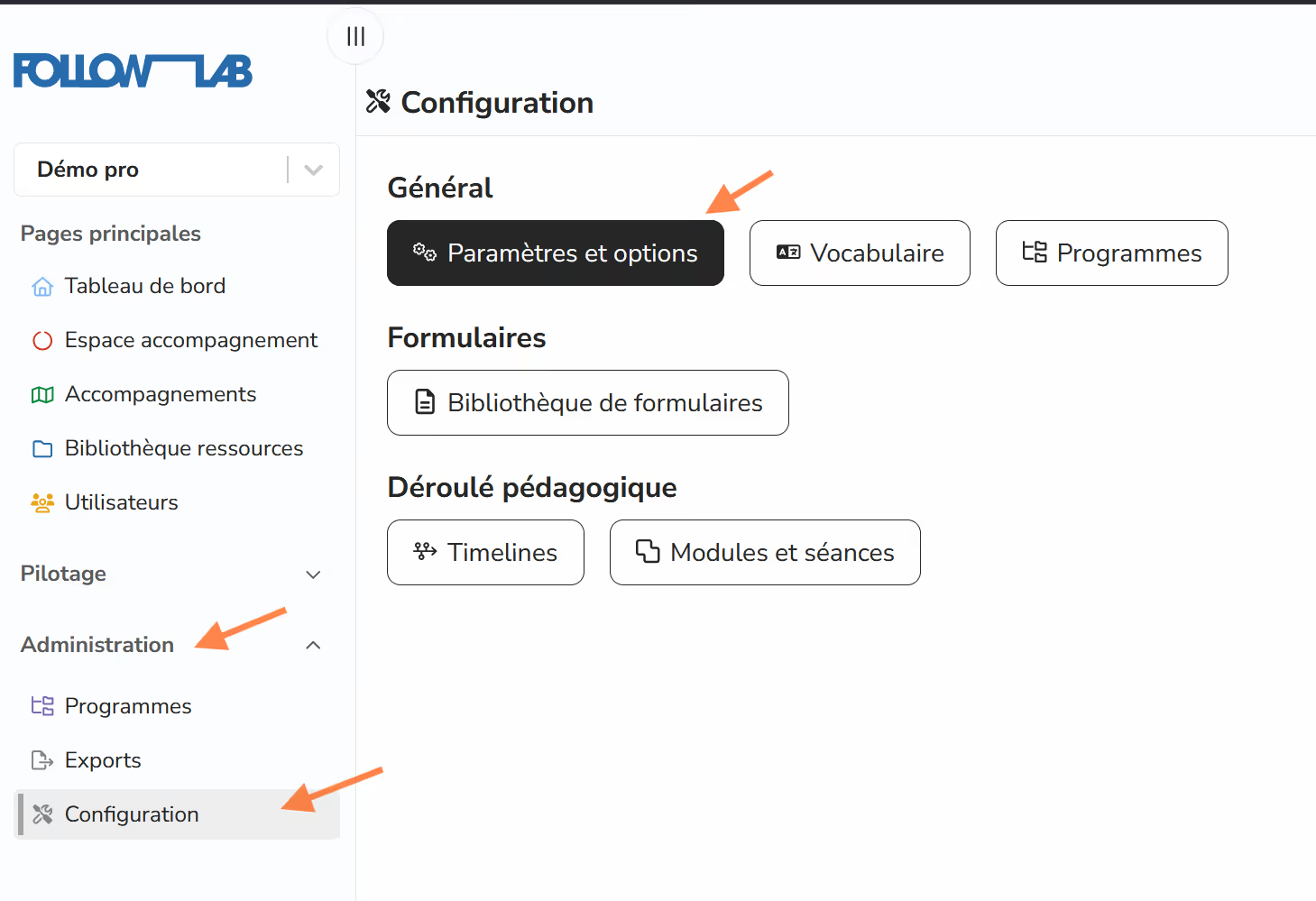
To enable the integration, go to the "configuration" page, then select "Calendly configuration".
You will only need to log in to your Calendly account to accept synchronization.
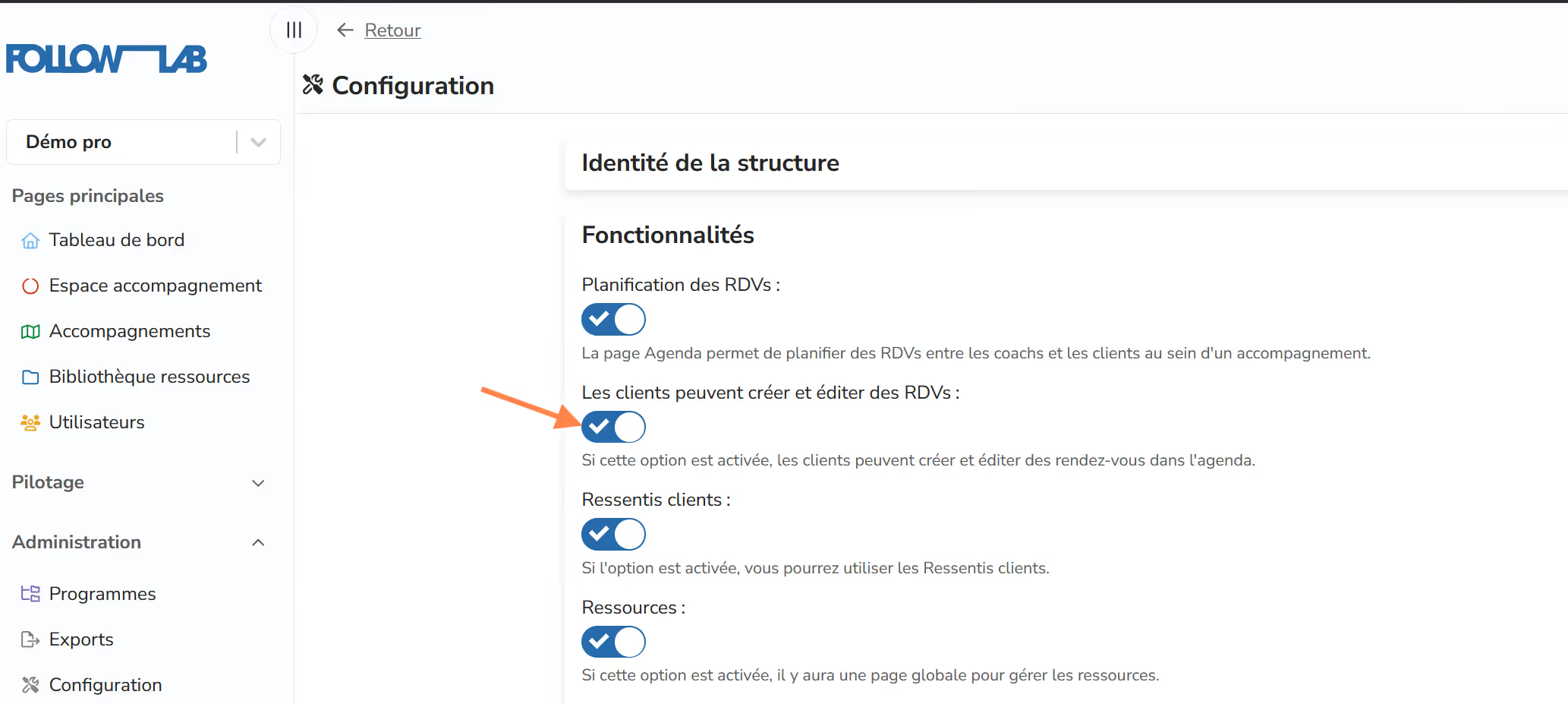
Finally, check on Follow Lab PRO that clients are allowed to schedule appointments.
To do this, go to "Configuration", "Settings and options".
And verify that clients have permission to create and edit appointments.
That's it! Now when your clients want to add an appointment for a future session, they have access to your Calendly availability!
How do I get my invoices?
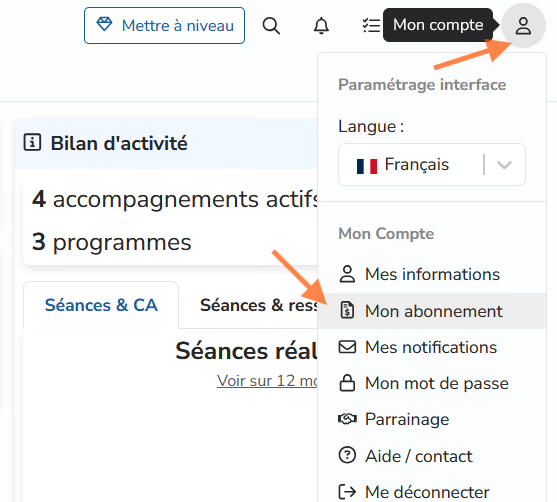
Once you are subscribed to Follow Lab PRO, monthly billing is in place. All your invoices are available in the my subscription section.
How does attendance tracking work?
Here is a video that explains how attendance tracking works:

Can I sign documents electronically on Follow Lab PRO?
Follow Lab PRO does not offer a built-in electronic signature feature.
This is a deliberate choice: independent professionals generally have limited signature volume needs (a few documents per year), which does not justify the extra cost of an integrated solution, about €10/month on top of your subscription!
To sign or have a document signed, we recommend Goodflag Community, a French electronic signature platform that is free with no time limit, compliant with the European eIDAS regulation. It is accessible to any independent professional without subscription or credit card.
The process in practice:
- Export your PDF document from Follow Lab PRO
- Import it into Goodflag Community
- Define the signatories and the desired signature level
- Send the signing packet and your recipients receive a link by email to sign
The signed document can then be uploaded to Follow Lab PRO in the client's sharing box, resources, or a dedicated form.